Basic File and Folder Management
This guide covers the basic tasks of creating, uploading, downloading, moving, and deleting files and folders in the folder view. The menus displayed may vary depending on the storage method and the permissions set by the administrator.
1. Folder Screen Composition
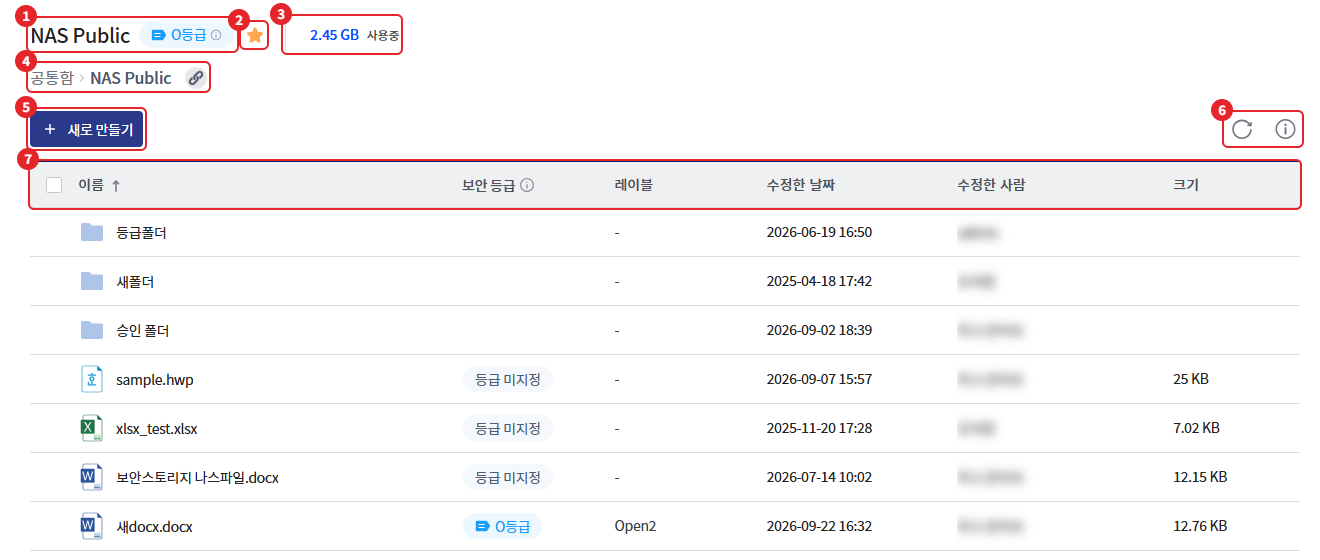
| number | item | Explanation |
|---|---|---|
| 1 | Folder Name | Current folder name. Depending on storage settings, "Approval Required" indication is displayed, along with the security level badge. |
| 2 | Favorites | Press the star icon to add or remove the current folder from favorites (secure storage) |
| 3 | Usage Capacity | Display in the top-level folder of storage. Personal items are displayed with retention period information (secure storage). |
| 4 | path | Move directly by clicking the parent folder. Copy the current folder link with the link icon next to the path (secure storage) |
| 5 | [Create New] | Create New Folder·Create New Document, Upload Files·Folders |
| 6 | Refresh · Details | Refresh List, Open/Close Detail Information Slide |
| 7 | List | Name, Security Level·Label (Level Applied Storage), Modified Date, Modified By, Size |
- The items pinned at the top are displayed as cards at the top of the list.
- When you hover over an item, the open icon and the more options (three vertical dots) icon appear to the right of the name. Clicking the more options icon opens a menu similar to right-clicking.
- Newly added items are marked with "This is a new file."
2. Item Selection
| Method | Action |
|---|---|
| Click item | Select only this item |
| Ctrl + Click | Add or exclude from selection |
| Shift + Click | Select range from the last selected item to the clicked item |
| Checkbox | Select by item, select all with the checkbox in the list header |
| Drag in empty area | Batch selection of items across a rectangular area |
| Click Esc or empty area | Deselect |
When you select an item, a selection bar appears at the top.
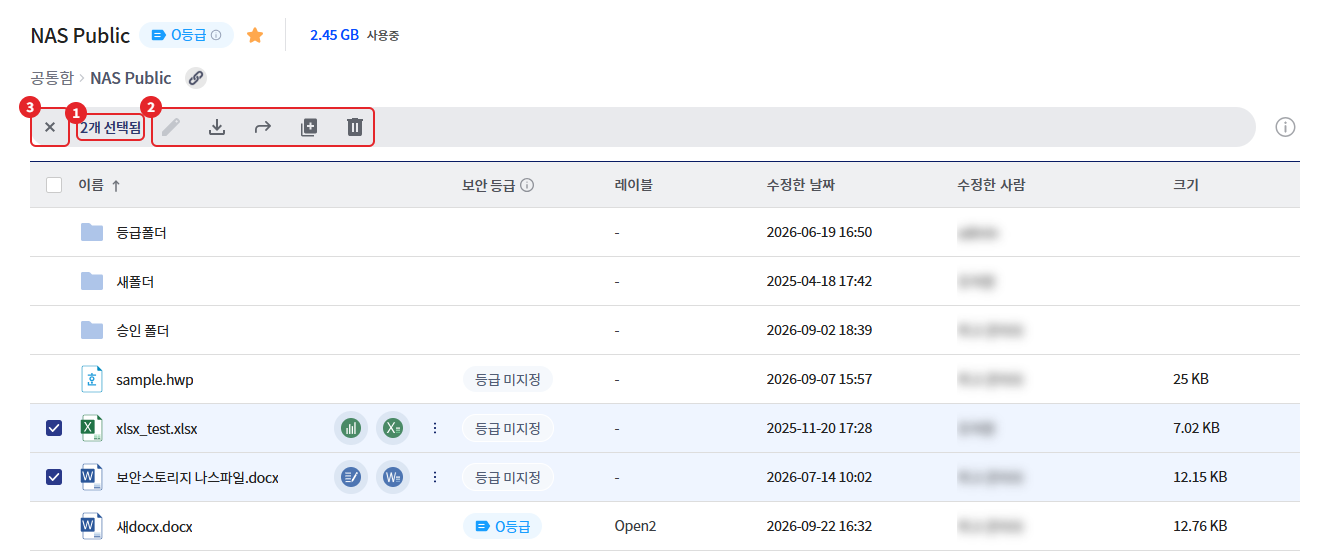
- The selection bar displays "{N} selected" and the icons for [Rename] · [Download] · [Move] · [Copy] · [Delete]. Actions that cannot be performed on the selected items will be disabled.
- Clicking the close icon on the left of the selection bar will deselect it.
- When you select 1 item, the detailed information slide opens above the list, and it closes if you deselect or select more than 2. For more details, please refer to "Check Details."
- Double-clicking an item will move the folder to that folder, and files will open in a manner appropriate to their permissions. Please refer to the "File Viewing and Editing Guide" for the method of opening.
3. Right Click Menu
Right-clicking on an item will display a menu available for the selected item. If there are no available menus, "No available menu." will be displayed.
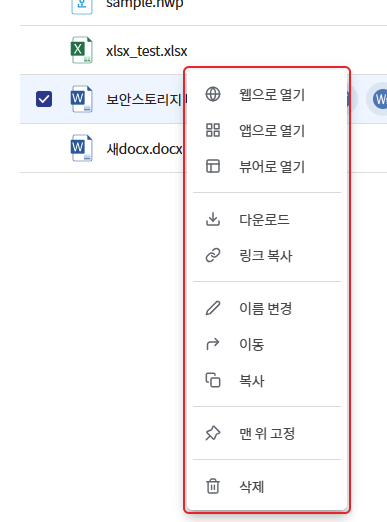
| Menu | file | folder | condition |
|---|---|---|---|
| [Open in Web] | O | - | Editing permissions, web office usage storage, supported file types |
| [Open in App] | O | - | Editing permissions, app editing used storage, docx·xlsx·pptx, excluding Linux |
| [Open in Viewer] | O | - | Access Rights, SHIELD Viewer Supported File Types |
| [Download] | O | - | Download Permission |
| [Folder Download] | - | O | Download Permission, Secure Storage |
| [SHW Download] | - | O | Companies using SHIELD Drive Works, secure storage |
| [Send File] | O | - | Companies using a disaster recovery system, file sending permissions, secure storage |
| [Copy Link] | O | O | Secure Storage |
| [Name Change] | O | O | - |
| [Move] · [Copy] | O | O | Move/Copy Permissions |
| [Fix to Top] · [Unfix] | O | O | Secure Storage |
| [Favorite] · [Unfavorite] | - | O | Secure Storage |
| [Resynchronize] · [Restore Last Version] | O | - | Upload Permissions, Sync Failure Files (Refer to page 10) |
| [Delete] | O | O | Delete Permission |
- If you select multiple items, the Open, Rename, Copy Link, and Bookmark menus will not be displayed.
- If the folders are mixed, [Send File] will not be displayed. In regular storage, [Download] will also not be displayed.
- In the storage list screen (for example, just below the common box), only some menus such as [Copy Link], [Pin to Top], and [Favorite] are displayed.
4. Create New
Pressing the [Create New] button opens the menu. The button is only displayed in folders where you have upload permissions.
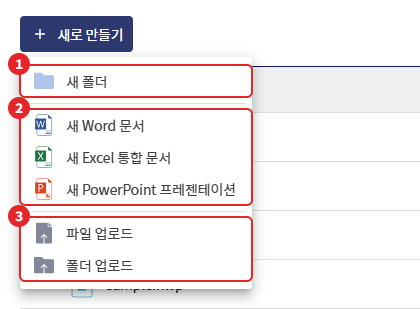
| Menu | Action |
|---|---|
| [New Folder] | Create a folder at the current location by entering a name |
| [New Word Document] · [New Excel Workbook] · [New PowerPoint Presentation] | Create a blank document by entering a name. The extension (docx·xlsx·pptx) will be automatically added. |
| [File Upload] | Select a file from your PC to upload |
| [Folder Upload] | Upload a folder from your PC, including sub-items. |
- In secure storage, when a new document is created, it is selected in the list, and if you have viewing permissions, it opens immediately.
- In storage where approval is applied, the create new document menu is not displayed.
- Please refer to the "Folder and File Naming Conventions" for the name input rules.
5. Upload
5-1. Upload Method
- Drag and Drop: Drag files or folders from your PC into the list area. When you drop it while the message "Drop here to attach files." is displayed, the upload will begin.
- Menu: [New] > Select [File Upload] or [Folder Upload].
- In an empty folder, a message will be displayed in the center of the list saying "Drag files here or use the [New] button."
When the upload starts, the upload window will display "{N} items uploading" and the progress status for each item.
(Image to be attached later)
| status | meaning |
|---|---|
| In the air | Waiting for upload order |
| Uploading file... | Uploading in progress |
| Upload complete | Upload complete |
| Upload failed | Upload failed. Hover over the status message to see the reason. |
| Duplicate item exists | An item with the same name already exists (see 5-2) |
| Checking policy.. · Executing script.. · Processing results.. | Checking the conditional policy set by the administrator |
| Request completed | Approval requests have been registered in the storage where approval has been applied (see "Approval Request Guide"). |
If you close the window while uploading, a message will be displayed: "One or more items are being uploaded. If you cancel the upload, the unfinished items will not be uploaded." You can choose [Continue Upload] or [Cancel Upload].
5-2. In case of items with the same name
If there is an item with the same name in the upload location, a dialog will appear to choose how to proceed.
(Image to be attached later)
| button | Action |
|---|---|
| [Overwrite] | Replace the existing file with a new file. Secure storage is saved as a new version (files only). |
| [Keep Both] | Create a copy of the new item while keeping the existing item as is. |
| [Overwrite All] | Apply overwrite to all items in the list |
| [Keep All] | Apply both to all items in the list. |
- The folder can only select [Keep Both].
- Files being viewed or edited by other users cannot be overwritten. If the "Item cannot be changed" message is displayed, please create a copy by selecting [Keep Both].
5-3. When Uploading Fails
| Guide text | Cause |
|---|---|
| You cannot upload to this path. | Upload in the top-level areas such as personal and shared folders or the storage list screen. |
| Insufficient storage capacity, unable to upload. | Exceeded personal allocation capacity |
| You do not have permission. | No upload permission |
| This is an unsupported extension. | Extensions blocked by the administrator |
| Empty files are excluded from the upload target. · Empty folders are excluded from the upload target. | Files with a size of 0 and folders with no content will not be uploaded. |
| The format includes files that cannot be uploaded. | Dragging and dropping items that are not files or folders (such as text snippets, etc.) |
| You cannot perform this operation according to the security level policy. | If the upload of files with a higher grade than the storage security grade, or files without a specified grade, is blocked (refer to "Document Grade Guide") |
If there are items that failed to upload, a window will appear saying "One or more items failed to upload. Please try uploading again." You can re-upload items individually using [Retry] or [Retry All].
6. Download
| Method | Target |
|---|---|
| Right-click > [Download] | file |
| Right click > [Download Folder] | 1 folder (received as a compressed file, securely stored) |
| Selection Bar > [Download] | Selected files·folders multiple |
| Download icon that appears when hovering over the item | A file that cannot be opened directly |
- If the total of the selected items exceeds 1GB, a "Download Capacity Notification" window will appear. Pressing [Continue] will start the download.
- When multiple items are received, a download progress window will appear at the bottom right of the screen, displaying the progress and completion/failure status for each item in the format "Total {N} items, {M}".
- If there are any failed items, you can check the reasons for each item in the "Download Failed" window and try again.
- In storage where approval is applied, files are not immediately received, and an approval request is registered. Please refer to the "Approval Request Guide."
- You can download the previous version file from the [File Version] tab in the detailed information slide.
(Image to be attached later)
7. Rename, Move, Copy, Delete
7-1. Rename
- Select the item and right-click > [Rename] or press [Rename] on the selection bar.
- Enter a new name and click [OK].
- You can only change the name of the file without the extension. The extension is fixed and displayed on the right side of the input field.
- If the name is the same as the existing one, [Confirm] will be disabled.
- The document being edited will not change with the message "The document being edited cannot be renamed."
7-2. Move·Copy
- Select an item and right-click or press [Move]·[Copy] on the selection bar.
- In the "Move" · "Copy" window, go to the target folder. You can return to the parent folder by clicking the upper path.
- Press [Move] or [Copy].
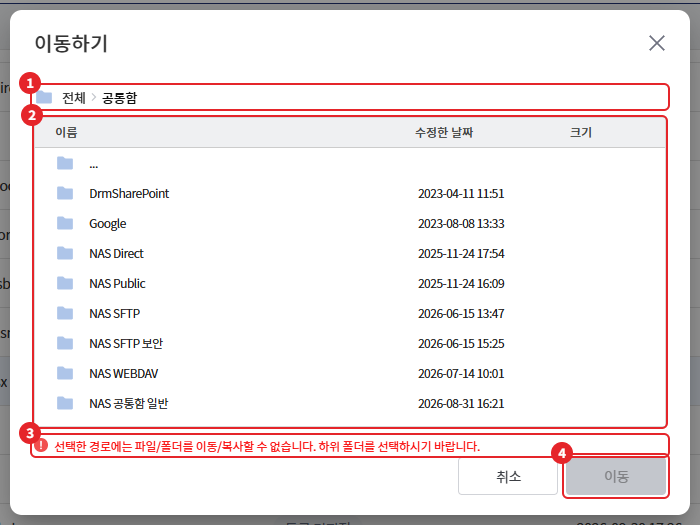
If there is an item with the same name in the target folder, choose [Overwrite] / [Keep Both] in the same way as uploading. If you select a location that cannot be moved or copied, the reason will be displayed at the bottom of the window and the button will be disabled.
| Guide text | Cause |
|---|---|
| Files/Folders cannot be moved/copied to the selected path. Please select a subfolder. | Select top-level areas such as personal and shared storage lists. |
| Cannot move to the same path. | Select the current location |
| You can only move/copy to the selected path and its sub-paths. | Unauthorized path selection |
| The capacity of the selected storage is insufficient to move/copy. | Insufficient capacity for the target individual container |
| The file storage method of the storage is different, so moving/copying is not supported for that storage. | Moving and Copying Between Secure Storage and Regular Storage |
| General storage cannot be moved or copied to other storage. | Moving/Coping from General Storage to Another Storage |
| MS integration is not available, so moving/copying cannot be done. · Google integration is not available, so moving/copying cannot be done. | Select OneDrive·SharePoint·Google Drive before account linking |
| It is not possible to move/copy to a storage with a lower grade than the current file's grade. Other grade-related phrases. | Security Level Policy ("Document Classification Guide" reference) |
| Documents cannot be moved outside of storage where approval has been applied. · Documents cannot be retrieved from storage where approval has not been applied. | Between approved storage and general storage (refer to "Approval Request Guide") |
- The document being edited cannot be moved. A message stating "The document being edited cannot be moved." will be displayed.
- If some items fail, you can try again in the "One or more items failed to move." window.
7-3. Deletion
- Select an item and right-click or press [Delete] on the selection bar.
- Press [Delete] in the confirmation window.
| Storage Method | Confirmation Window | result |
|---|---|---|
| Secure Storage | Delete Selected Items – "When selected items are deleted, they will be moved to the user's recycle bin." | Move to Trash. Restorable within 30 days ("Trash" reference) |
| General Save | Permanently Delete Selected Items – "The selected items will be permanently deleted and not moved to the recycle bin." | Immediate permanent deletion. Cannot be restored. |
- The document being edited cannot be deleted.
- If there are items that could not be moved to the trash, you can try again in the "Failed to Move to Trash" window.
8. Fixed at the top, Favorites
It can be used in secure storage.
| Function | Method | Note |
|---|---|---|
| Fixed to the top | Right click > [Pin to Top] | Up to 5 per folder. Release with the fixed icon of the fixed card or [Release] |
| Favorites | Right-click on the folder > [Favorites], or the star icon next to the folder name | Only folders can be registered. Move directly from the left menu [Favorites]. |

If you exceed the fixed number, a message will be displayed: "You can pin a maximum of 5 items."
9. Sorting
Clicking on the [Name] · [Modified Date] · [Modified By] · [Size] in the header of the list will toggle between ascending and descending order. The default is ascending by name, and folders are displayed before files.
- In general storage, [Last Modified By] sorting is not provided.
- SharePoint general storage is displayed in the order received from SharePoint and does not provide sorting by [size].
10. Synchronization Failure File Handling
If a file is not stored correctly on the server in secure storage, a status icon will be displayed in front of the file name. Hovering over the icon will show the status.
| Status Indicator | meaning | Available Features |
|---|---|---|
| Synchronizing with the server | Uploading and saving to the server in progress | Restrictions such as opening and moving until completion |
| An error occurred while uploading the file. Please try again. | Re-synchronization possible | [Resynchronize], [Delete] |
| File save failed. Please restore to the previous version. | Recoverable to the last saved version | [Restore Last Version], [Delete] |
| File upload failed. Please upload the file again. | Unrecoverable | [Delete] and re-upload |
- [Resynchronize]·[Restore Last Version] is executed with the icons that appear when you right-click the menu and hover over the items. You must have upload permissions for them to be displayed.
- If you open a file that has not finished syncing, a message will be displayed: "The file is not yet synced, so collaborative editing or viewing is not possible."